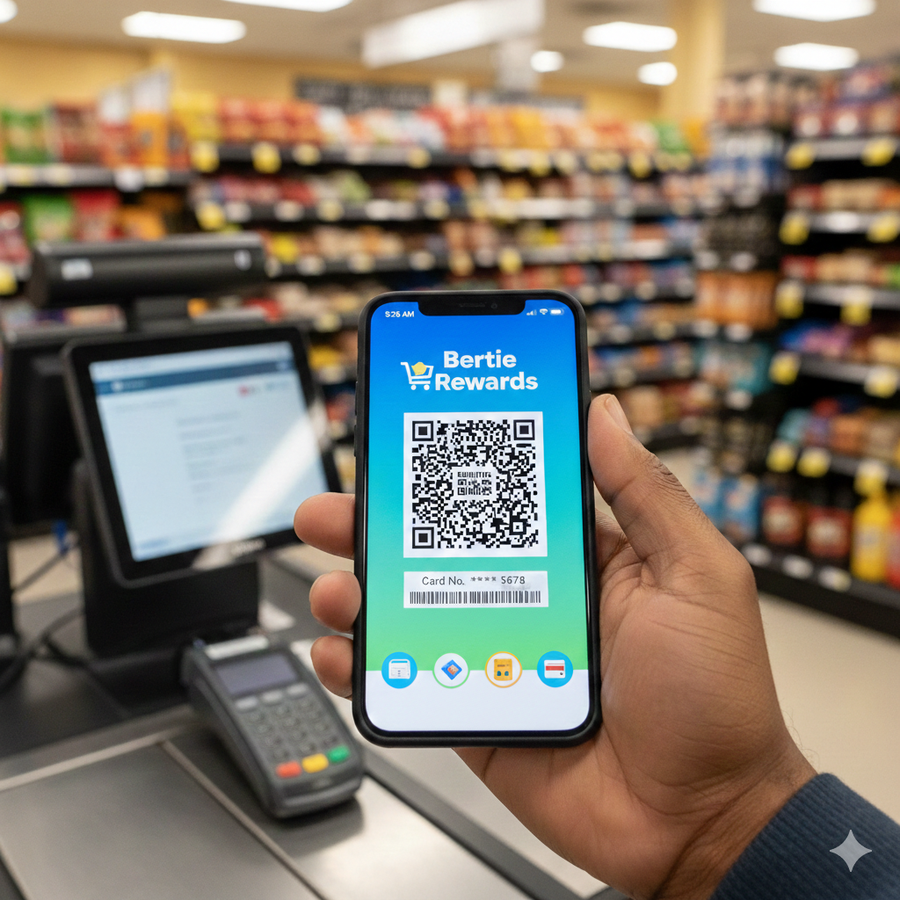
We’ve all been there: standing at the grocery checkout, digging through a thick stack of plastic cards in your purse or fumbling on your keychain to find that one specific loyalty card for a discount. For many of us, our physical wallets have become cluttered filing cabinets for plastic we rarely use but always need at the last second.
The solution is likely already in your pocket. Your smartphone comes equipped with a Digital Wallet, which is a secure app designed to store digital versions of your payment cards, loyalty programs, and even event tickets. Moving these items to your phone doesn't just lighten your load; it makes your daily errands faster and more organized.
Why Make the Switch?
The biggest hurdle for most people is trust. Is it safe to put my cards on my phone? Surprisingly, digital wallets are often more secure than physical ones for a few key reasons.
First, there is the concept of encryption. When you pay with a digital wallet, the store never actually sees your real card number. Instead, the phone sends a one-time-use code that only works for that specific transaction. Second, unlike a leather wallet that anyone can open, your digital wallet is locked behind your fingerprint, face scan, or passcode. Finally, if you lose your phone, you can log in from a computer and instantly freeze your digital wallet. You can't do that with a wallet you left behind at the park!
How to Add Your Loyalty Cards
Adding your grocery, pharmacy, or hardware store cards is the best way to get started without needing to link your bank account or credit cards right away.
For iPhone Users (Apple Wallet):- Open the Wallet app. It looks like a black wallet with colorful cards.
- Many store apps, such as those for drugstores or coffee shops, have a button that says Add to Apple Wallet. Tap it, and the card is instantly saved.
- For cards without an official app, you can often find third-party apps in the App Store that allow you to scan any barcode and store it in your wallet.
For Android Users (Google Wallet):
- Open the Google Wallet app.
- Tap the button at the bottom labeled Add to Wallet.
- Choose the Loyalty option. You can search for the store name and then use your camera to scan your physical card’s barcode.
Helpful Wallet Tricks
Many people are surprised to find that digital wallets are location-aware. If you walk into your local library or a participating grocery store, your phone can show a notification with your card ready to go, so you don't even have to look for it. Additionally, you don't always have to hunt for the app at the register. On most iPhones, a quick double-click of the side button brings up your cards instantly. On Android, you can usually just unlock your phone and hold it near the payment reader.
The Bottom Line
Technology is at its best when it solves a small, annoying problem. By moving your keychain cards and rewards programs to your phone, you’re taking a big step toward a more organized, less cluttered daily routine. Give it a try with one card this week. Your pockets will thank you!
_____________________
This article was developed by the author with the assistance of Gemini (February 9, 2026 version), a large language model developed by Google. Gemini was used to refine the instructional formatting of this piece and develop the accompanying graphic.